
How can we help you?
Here in our Help Center you will find all general answers to questions about billing, admin panel, product and much more.
What is shown on the dashboard and what can be configured?
The dashboard is the overview of your social intranet account and contains all important information at a glance. Unlike the other apps, the dashboard is hardly configurable. The dashboard consists of three panels. The first field contains a short greeting. The second window, Content , shows you what new content has been produced on your social intranet. Dates reminds you of upcoming deadlines, birthdays, and other dates.
How can I create an entry in the dashboard?
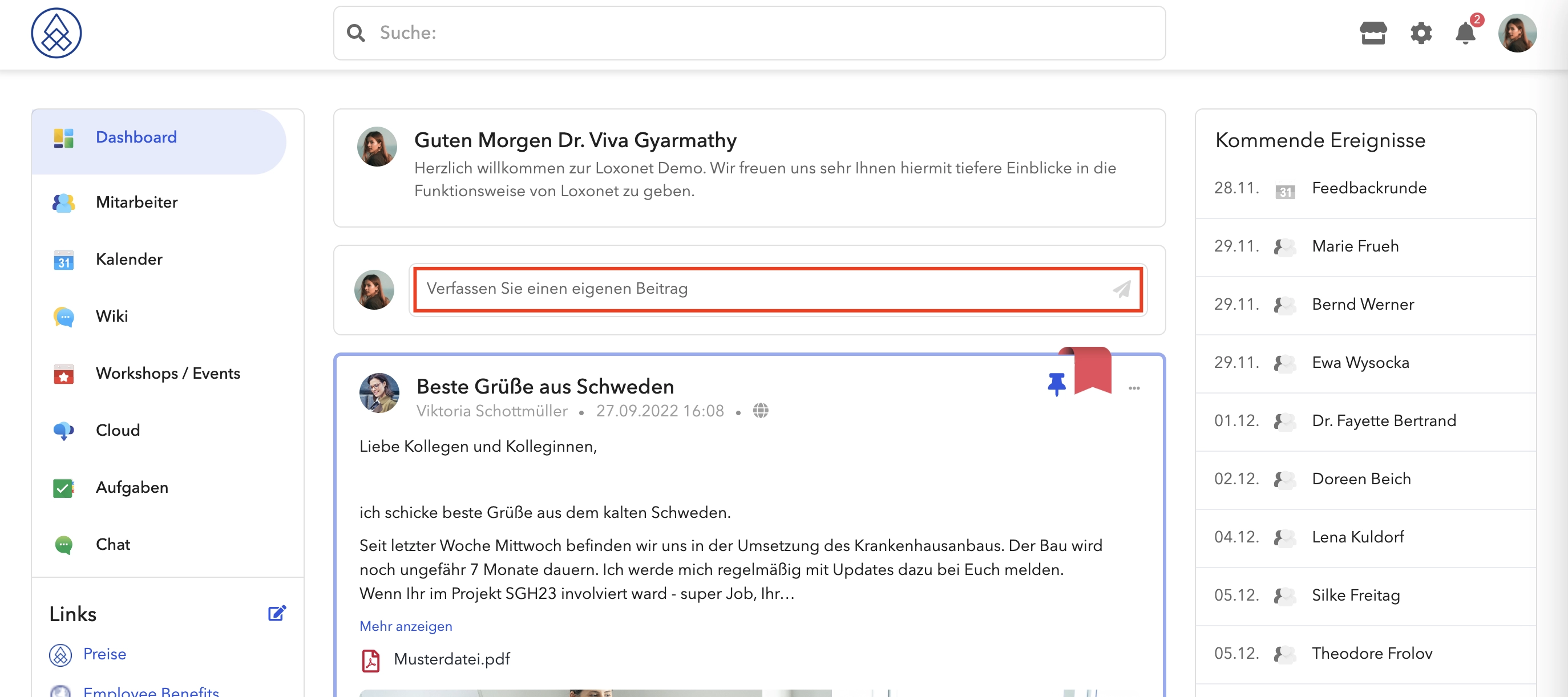
Click on the "Write your own post" input field to create a post.
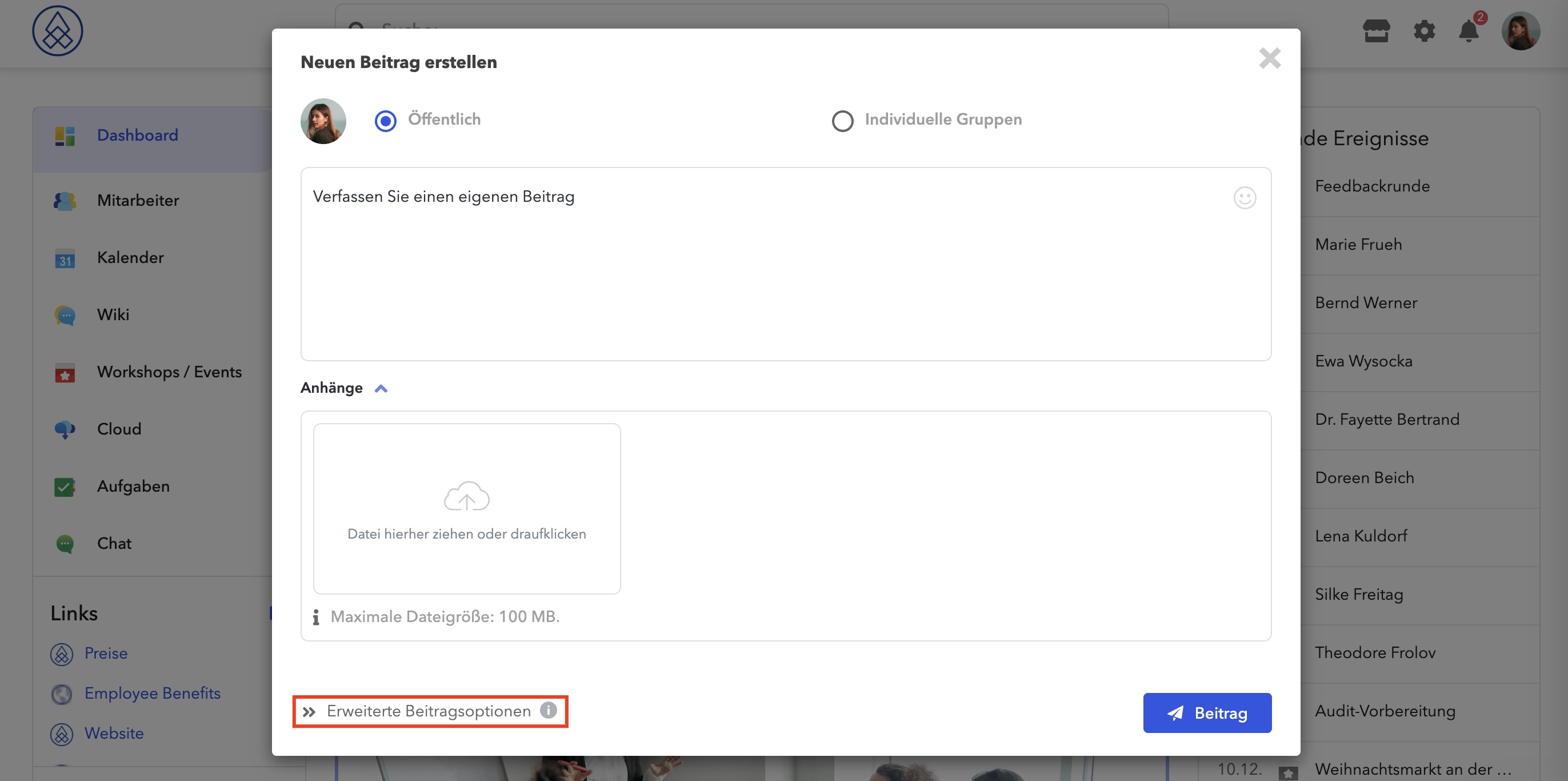
In the form that opens, you can select for whom the post should be available (public or for a specific user group), write the text of your post and, if necessary, add photos/videos or other files using the "Attachments" function .
Clicking on “Advanced Post Options” will take you to advanced post creation mode.
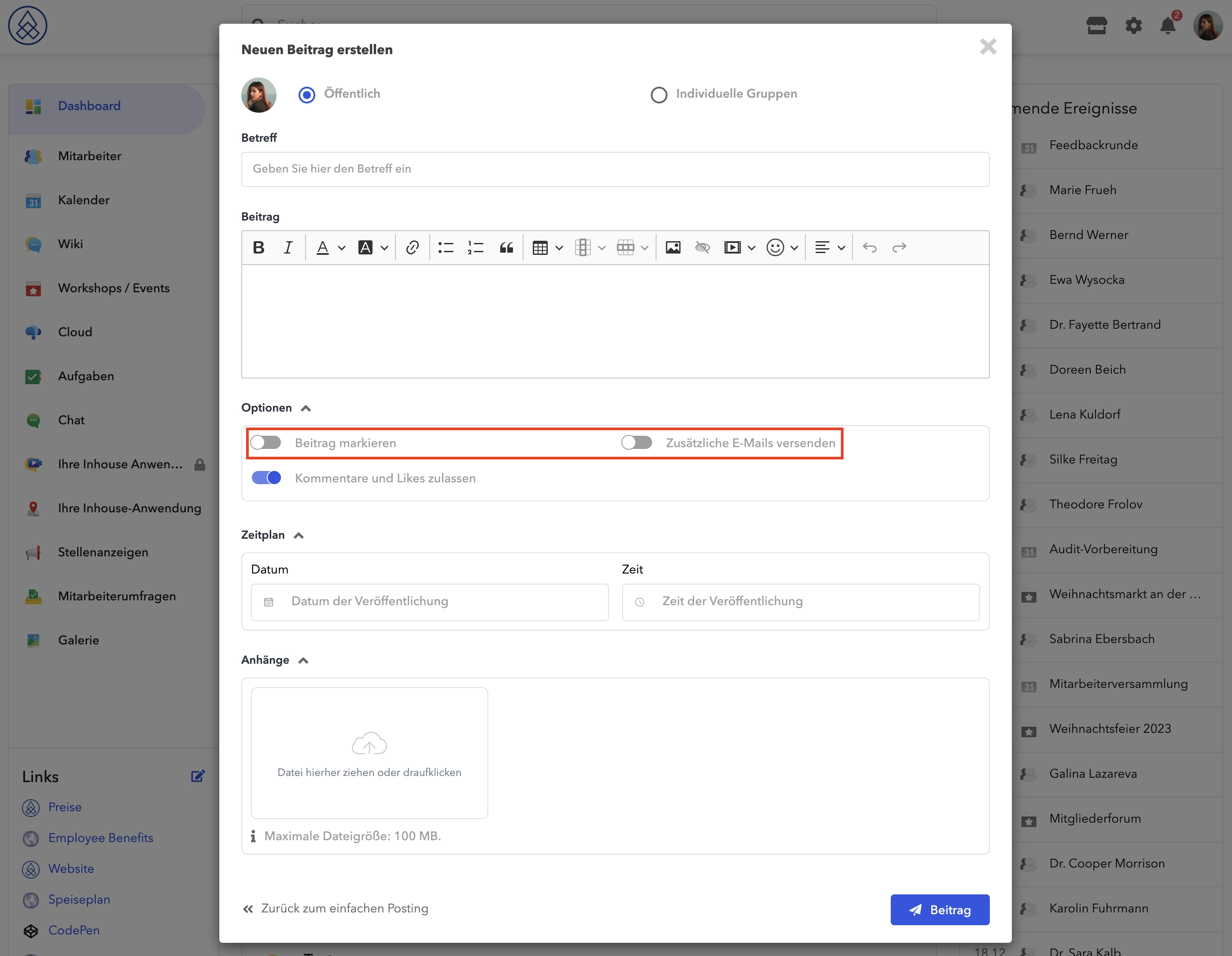
Here you have the option to add a "Headline" to your post and enable additional options such as " Mark Post " (If you enable this option, your post will be marked with a red ribbon and appear more official) and the option " Additional Emails "(If you enable this option, you can send notification emails when saving the post).
We're also excited to announce that it's now possible to schedule posts . This means that when you create a post, you can choose the date and time you want the post to be published.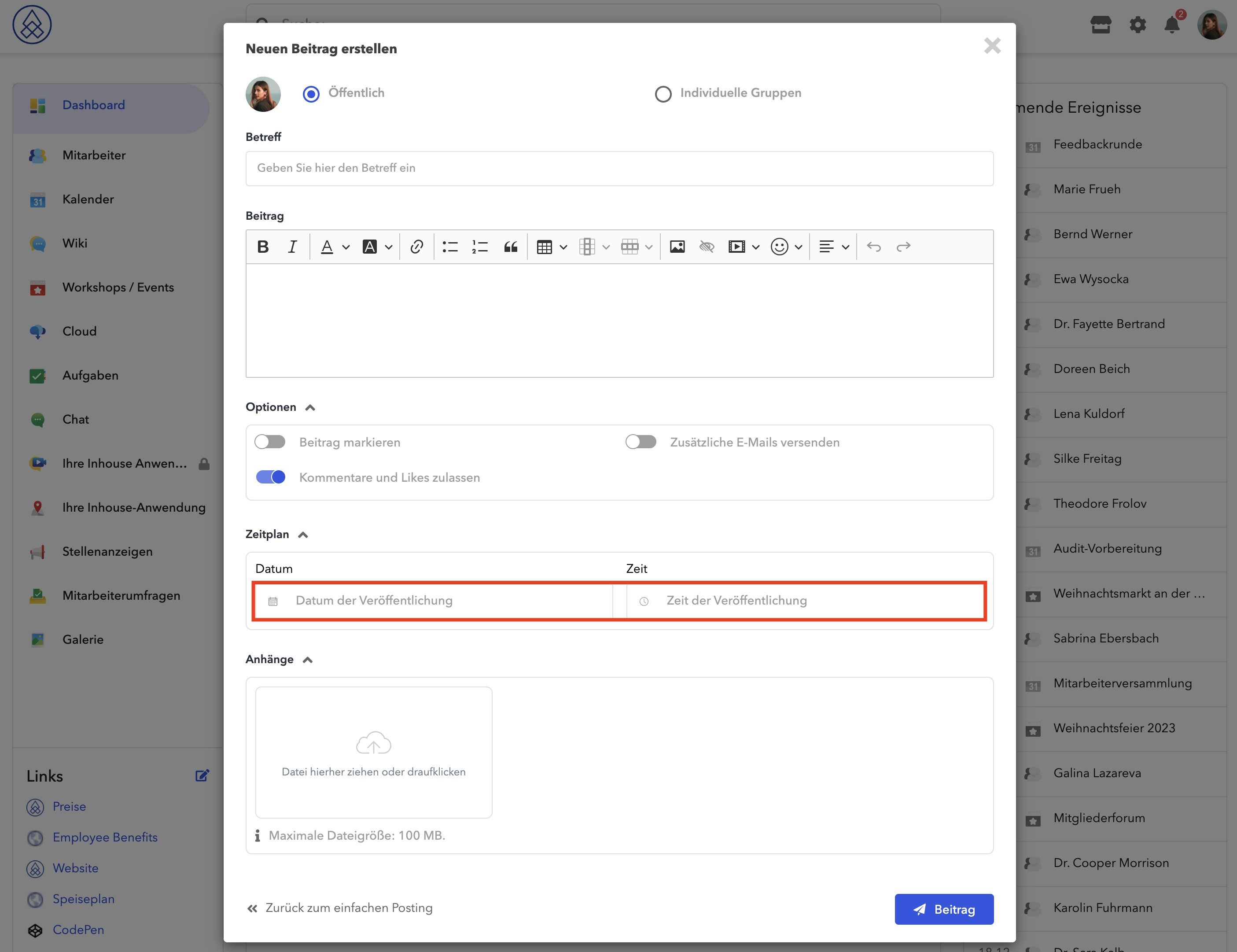
Why don't I have these options?
This means your user group is not allowed to create posts on the dashboard.
In this case you can contact your administrator.
How can I make a link clickable?
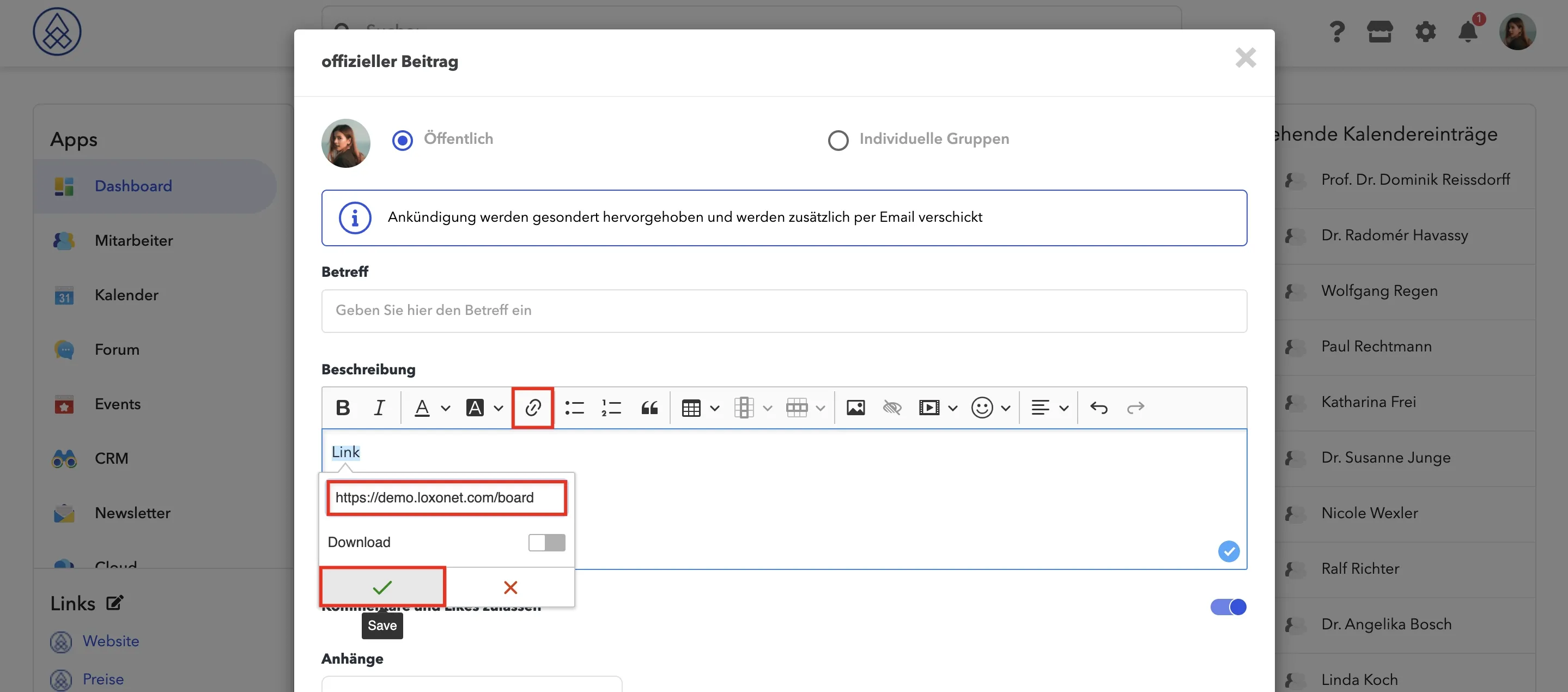
To make a link clickable, when creating a post, click the link icon and add your link and save it.
How can I see a comment on a post?
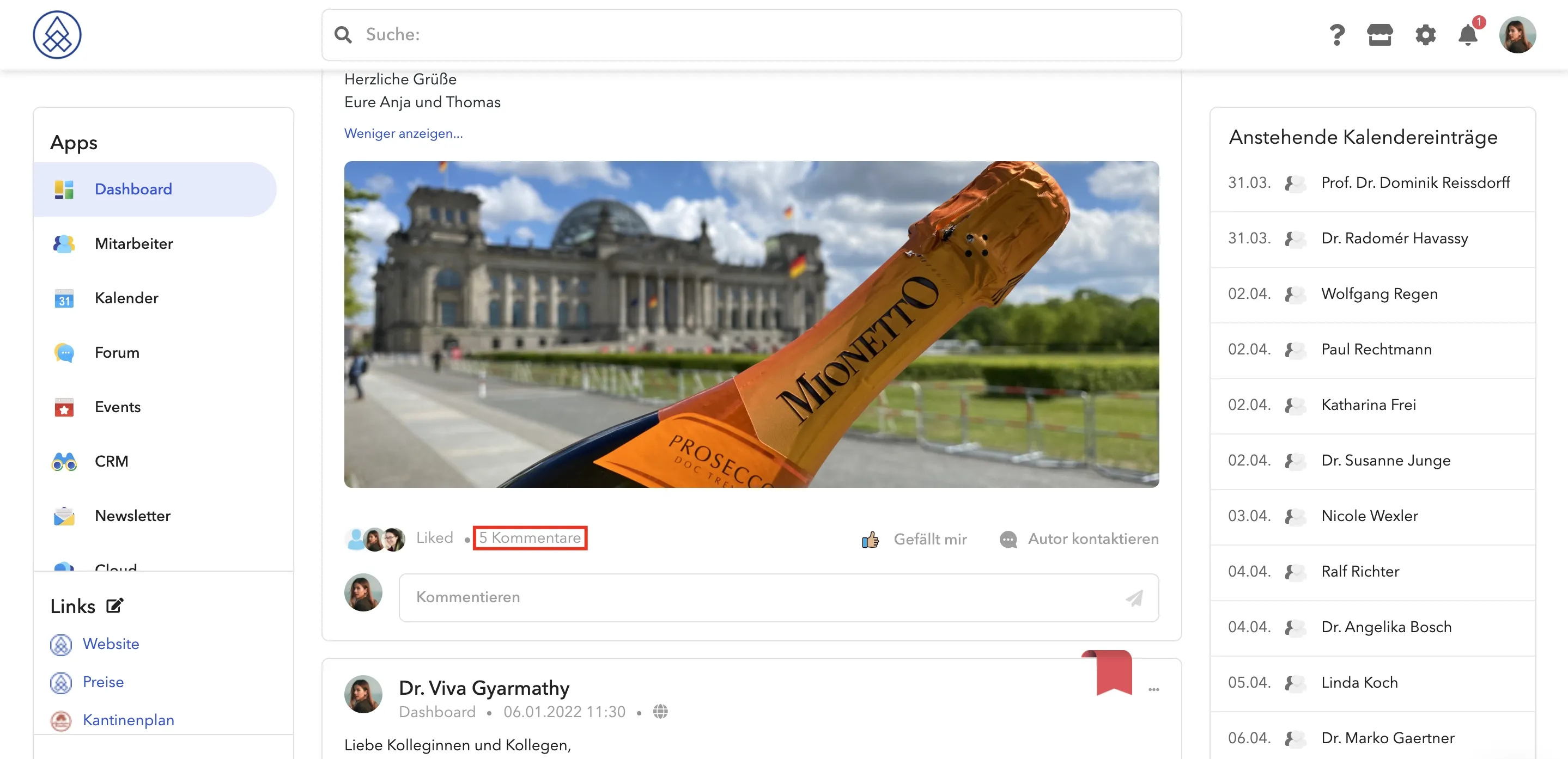
You can only see a comment on the post if you click on it on the dashboard.
Translation tool
In your dashboard, you have the option to see posts and comments in different languages, even if your account is set up in a different language. This allows you to understand and communicate content from around the world. This feature is particularly useful if you work in an international environment or understand and speak different languages.
Use translation function
If you see a post or comment on your dashboard in a language other than your account's, you have the option to translate that content. This is done simply and easily to ensure that you understand the content and can respond appropriately.
Steps to translate a post or comment:
Use the "Translate" option:
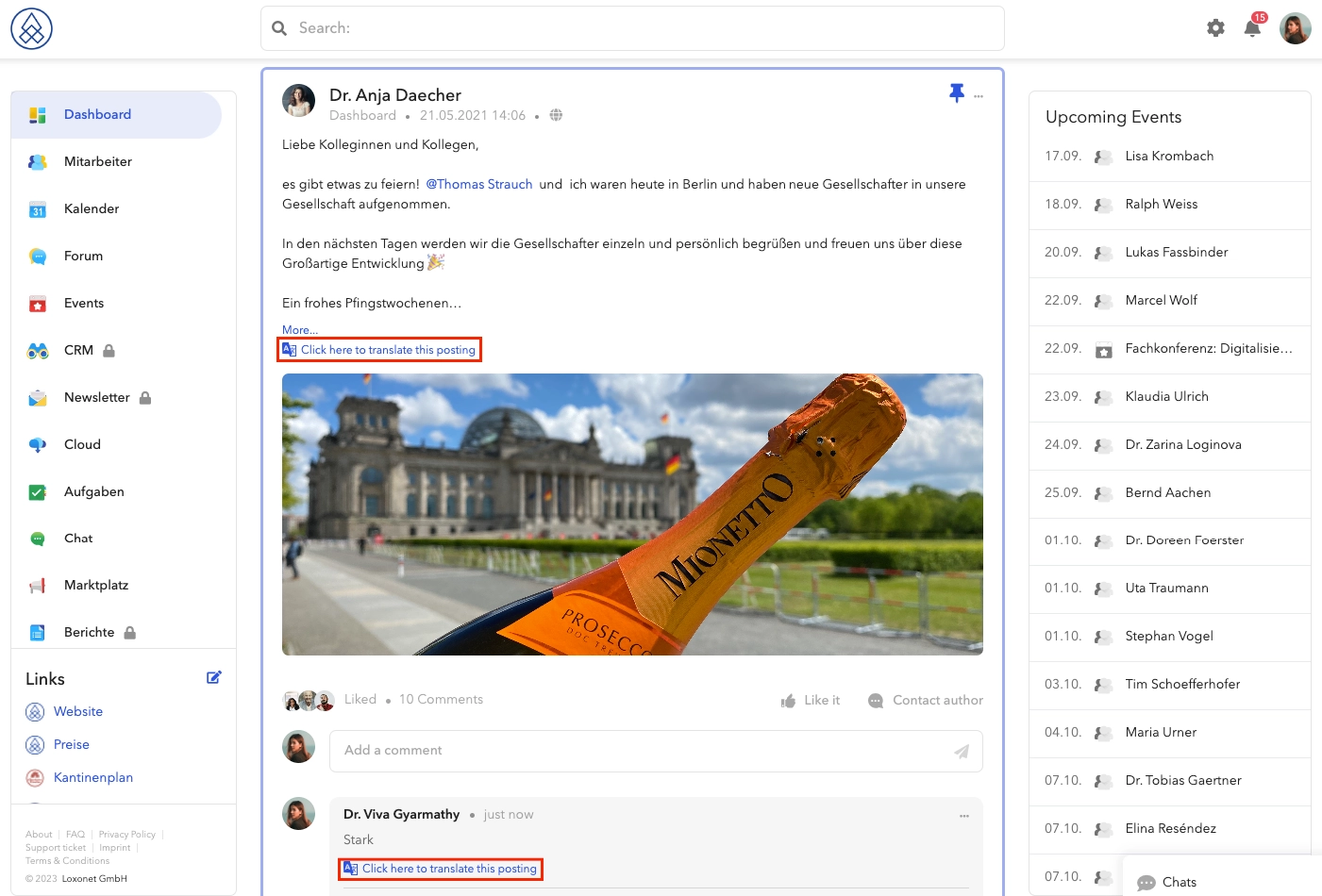
Below the post or comment in question you will find an option labeled "Translate". Clicking this option will automatically translate the content into the language of your account.
Use dropdown menu:
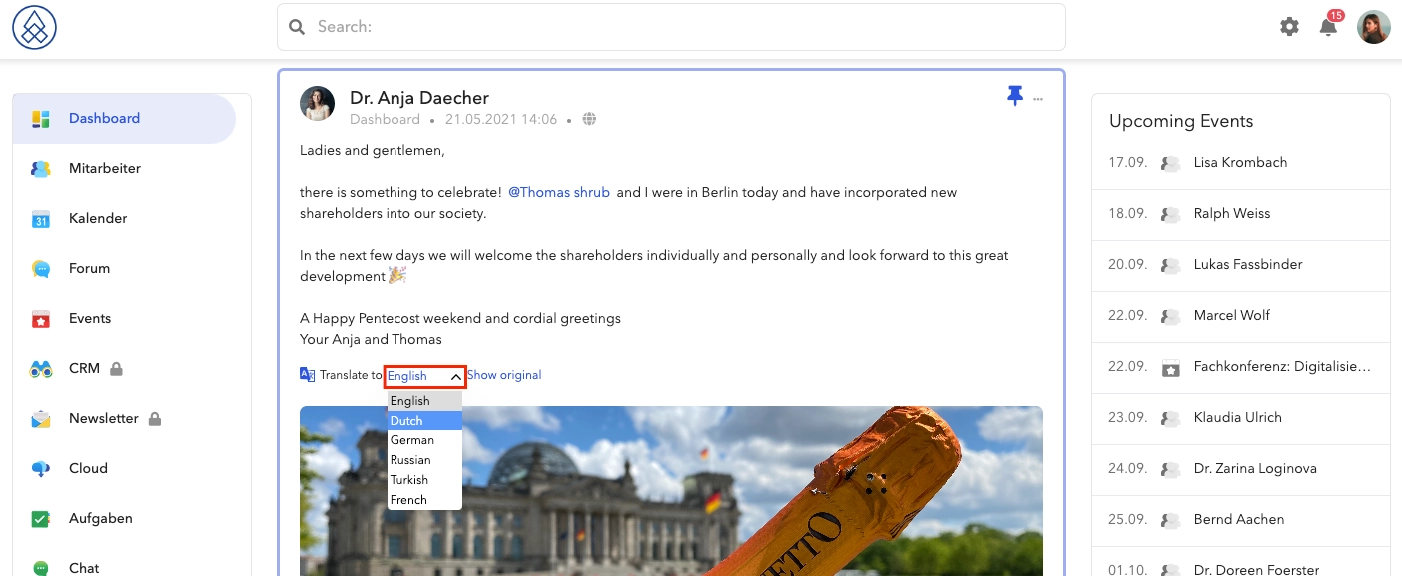
Alternatively, you can also open the drop-down menu and select the desired target language. This will translate the content directly into the selected language.
View original content
In addition to the translation option, you also have the option to view the original content of a post or comment. This can be helpful if you want to understand the exact wording or context of a post, especially if you are multilingual and translation is not always necessary.
Steps to view original content:
Click the "Show Original" option that appears next to the translated version of the post or comment.
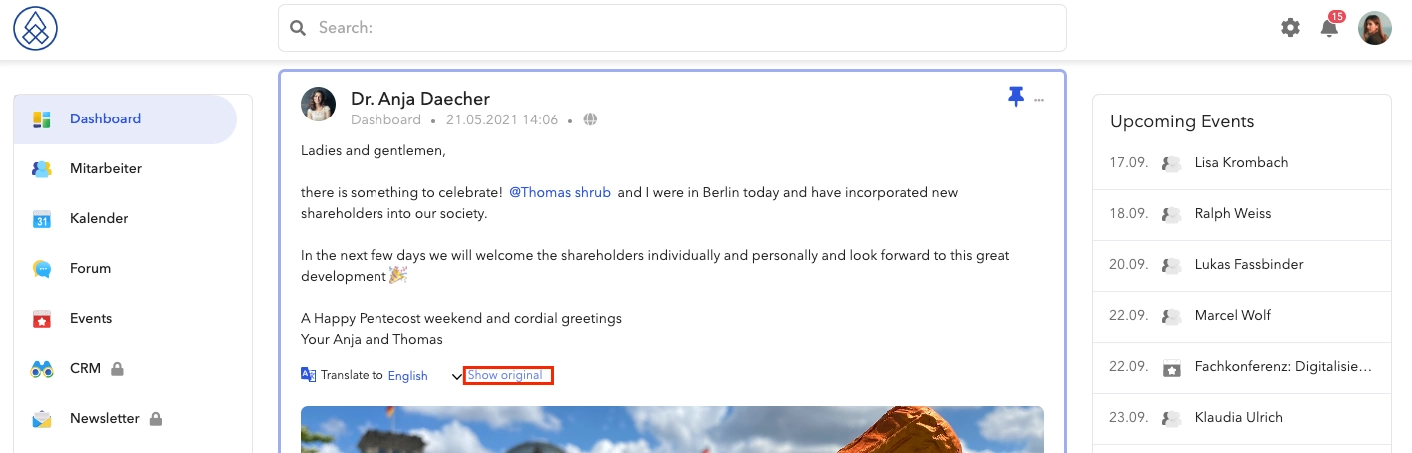
The translation and original viewing features in your dashboard allow you to easily understand and interact with posts and comments in different languages. This promotes communication and exchange in a global environment and offers flexibility for users who understand multiple languages or work in different languages.
How can I delete a photo from a post?
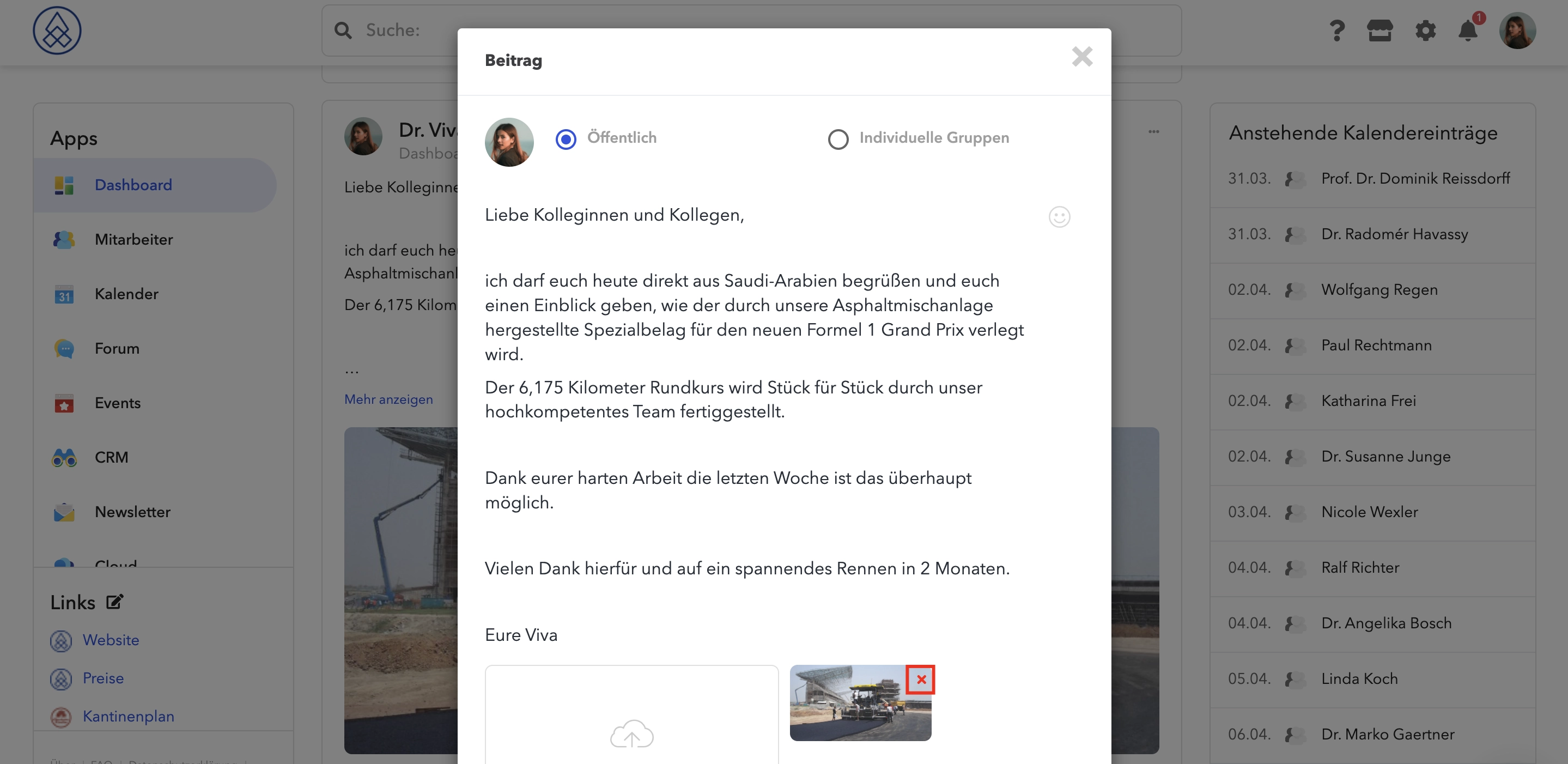
Press the three dots and select Edit ,
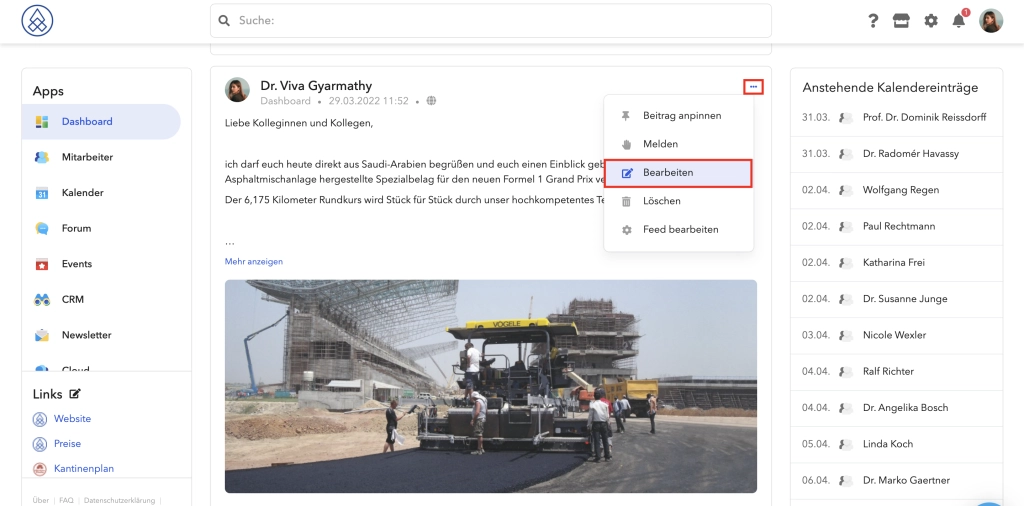
then click the red cross to delete the photo.
How do I pin posts on the dashboard?
Select the post you want, click the three dots and select " Pin Post ".
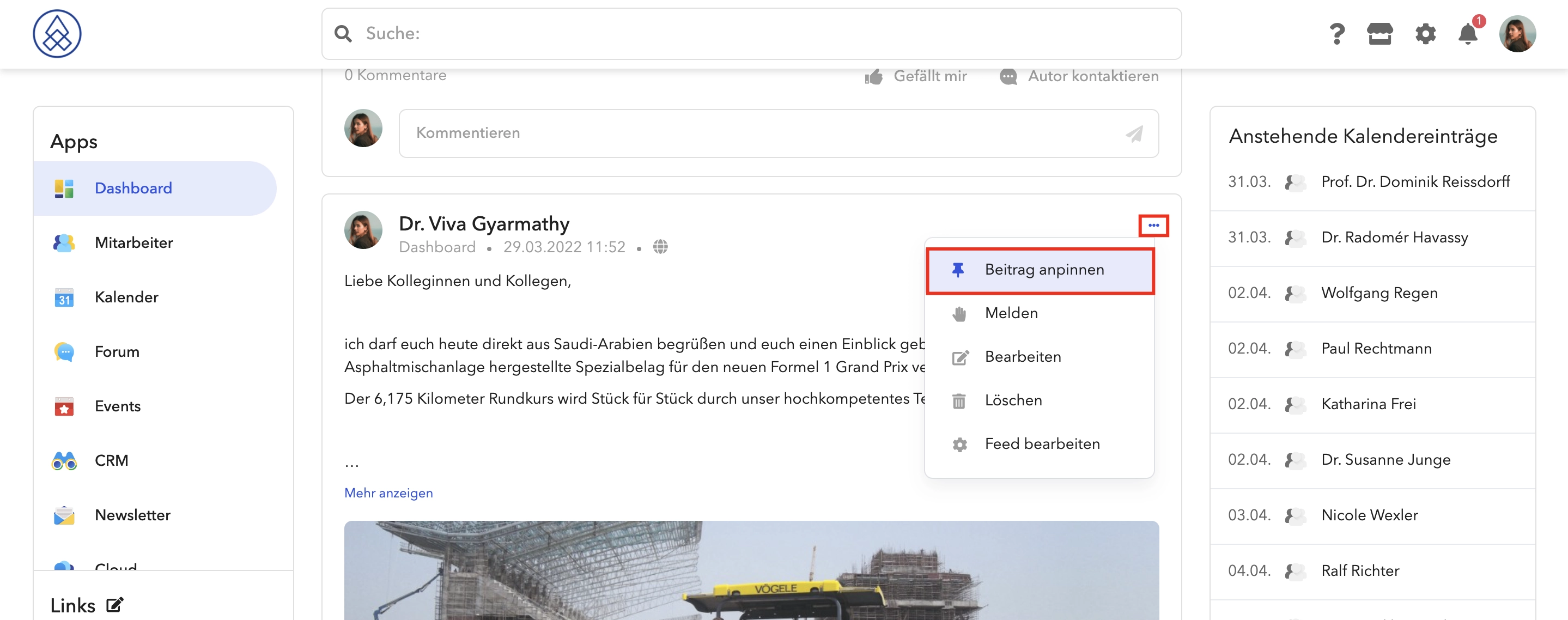
*Only admins can pin entries.
Can I link people on a post?
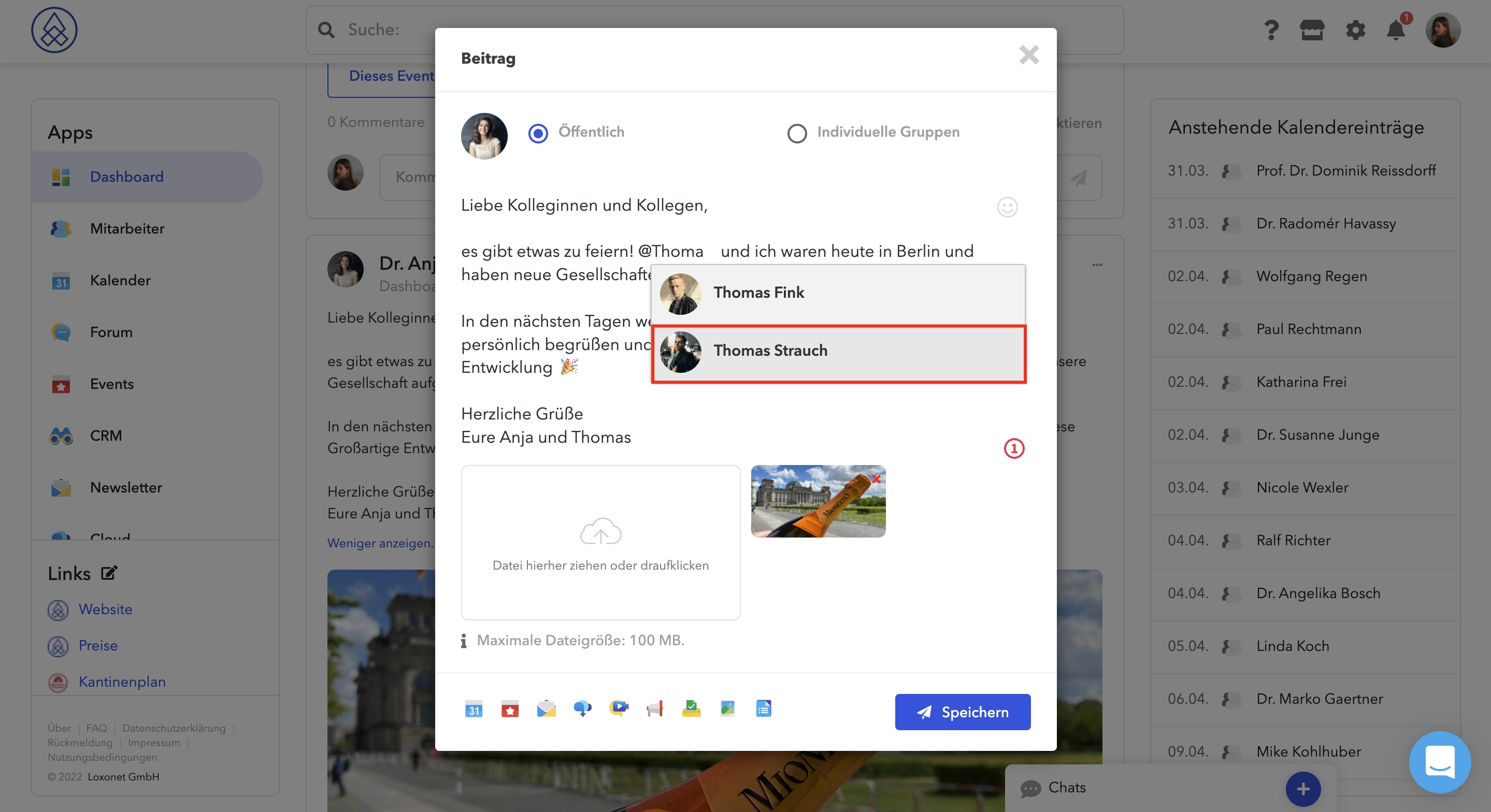
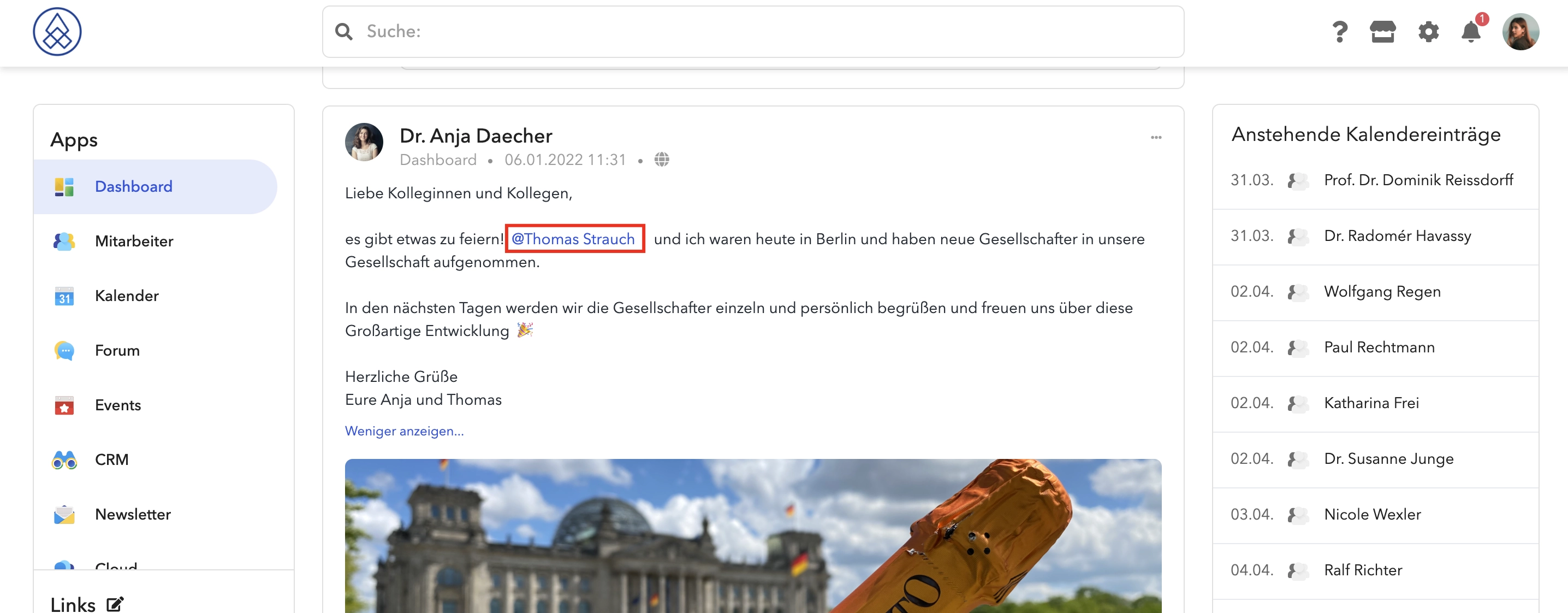
I'd love to! People are suggested to you with an " @ ". Of course it is also possible here to search for and select the desired person after the " @ " has been inserted in the comment column.
Attachments
We limit the total size of all uploaded attachments.
We are therefore forced to impose these restrictions because it is not possible to send emails with videos as email clients do not accept videos and attachments cannot be larger than 20MB.