How can we help you?
Here in our Help Center you will find all general answers to questions about billing, admin panel, product and much more.
The Tasks module allows users to effectively manage tasks, organize workflows and monitor the progress of task completion. This article explains all the main features and tabs of the module.
tabs
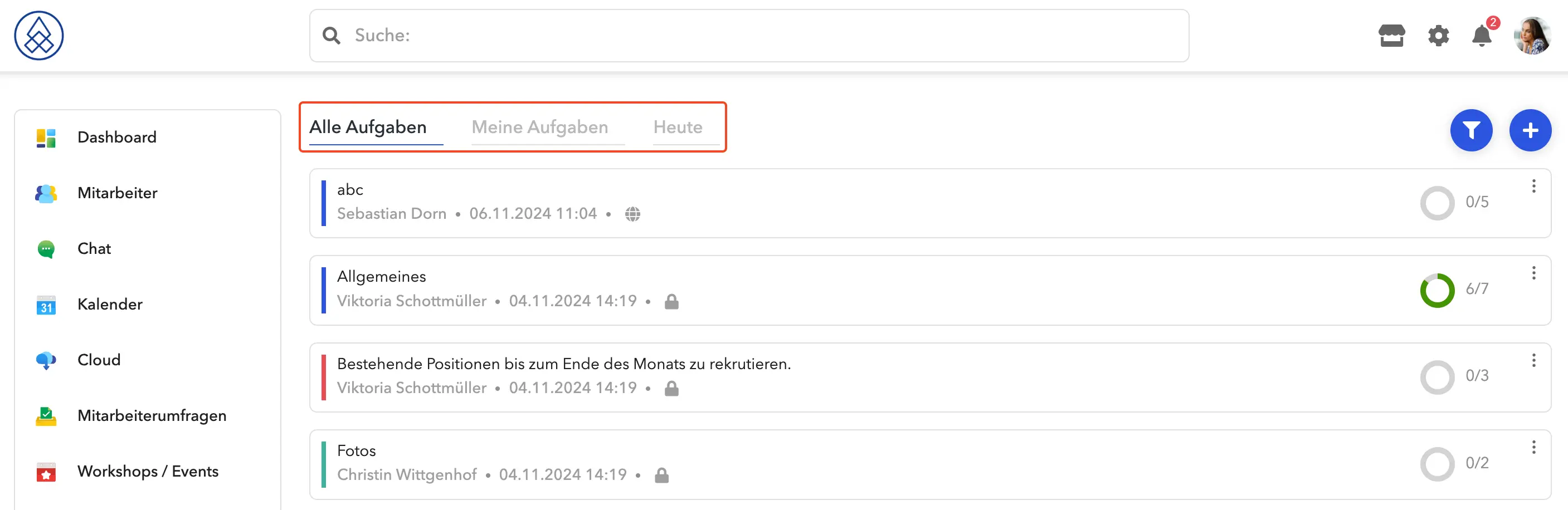
- All tasks: This tab displays all task lists available to the user. Clicking on the name of the list takes you to the corresponding task list, where all tasks and subtasks are displayed.
- My tasks: Only the tasks and subtasks that have been assigned to the user and that have not yet been completed are displayed here.
- Today: The Today tab shows tasks and subtasks assigned to the user that have a due date set to today or an earlier date.
information about the task
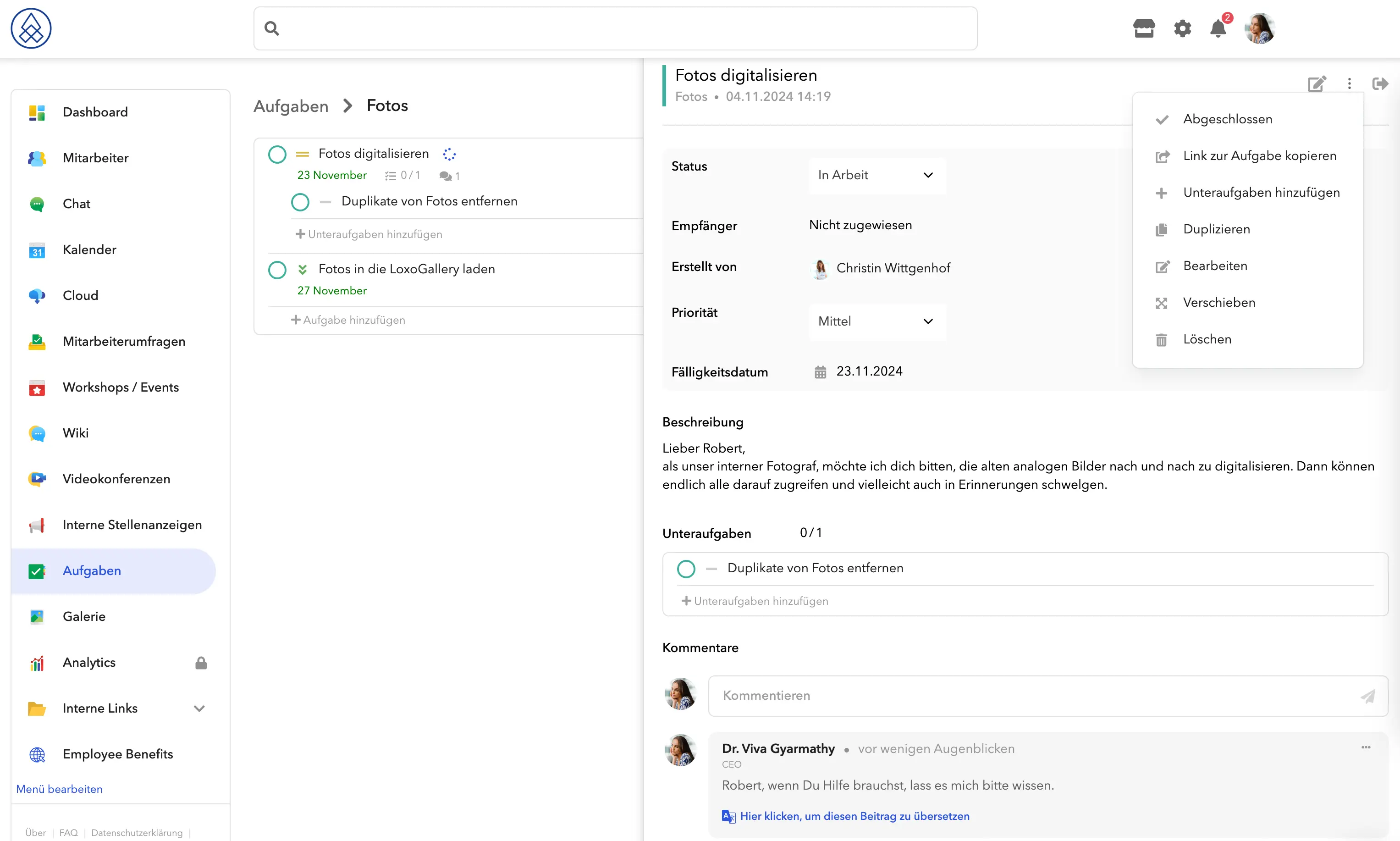
To view the full information about a task, click on the task name. A window opens displaying the following information:
- Status: The current status of the task.
- Recipient: The recipient of the task.
- Created by: Who created the task.
- Priority: The priority of the task.
- Due Date: The due date of the task.
- Description: A detailed description of the task.
- Attachments: Attached files.
- Subtasks: Subtasks associated with this task.
- Comments: Comments added to the task.
In this window you can change the status and priority of the task, as well as work with the subtasks. Additional options are available via the menu with the three dots in the upper right corner of the window.
complete tasks
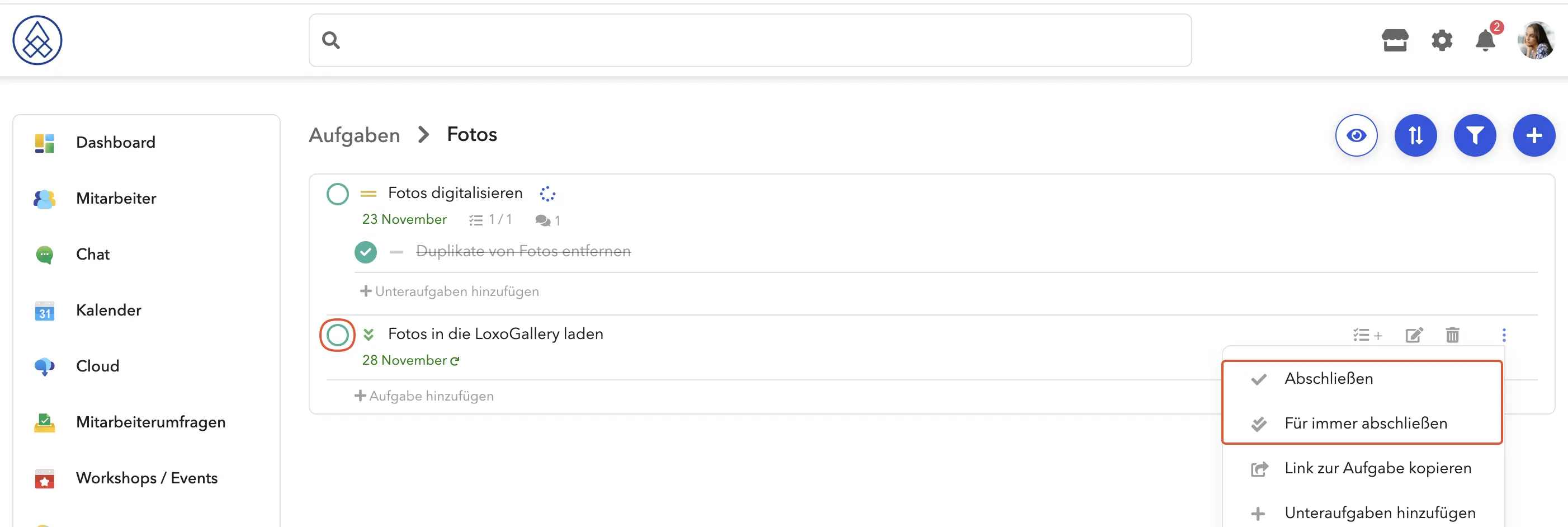
To complete the task, click the round checkbox next to the task. If it is a recurring task and you want to complete it completely, click the three dots and select Complete Forever.
Important: If a task has subtasks, all subtasks are automatically marked as completed when the task is completed.
A task can also be completed in the task details in the drop-down menu of the Status section.
Additional functions
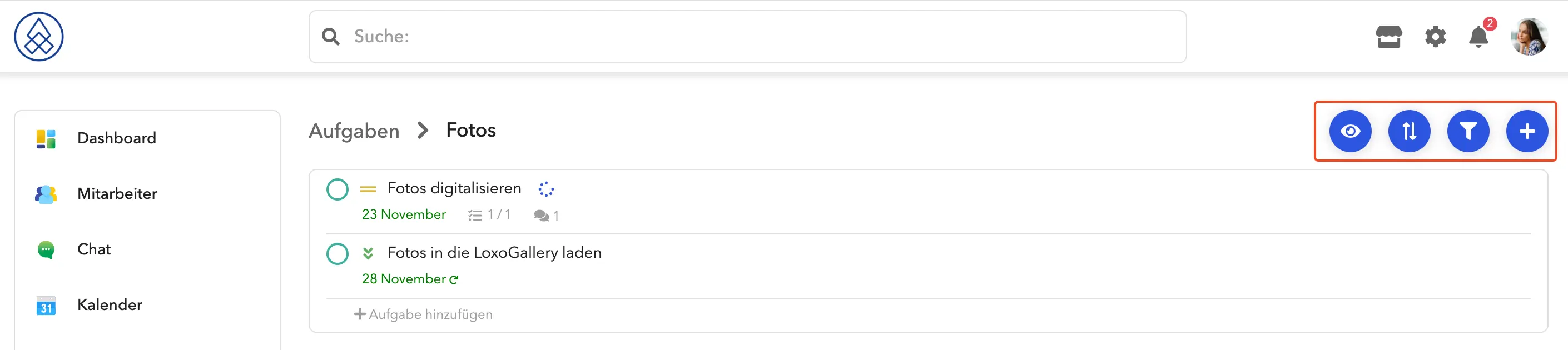
Depending on the tab you are in, various additional functions are available in the top menu bar of the module:
- Show all completed tasks: By clicking this button you can view all completed tasks, as they are hidden by default.
- Sort: You can sort the tasks according to your wishes.
- Filter: Filter tasks according to specific criteria.
- Add: Add a new task or to-do list.
In this window you can change the status and priority of the task, as well as work with the subtasks. Additional options are available via the menu with the three dots in the upper right corner of the window.
Adding a new task list
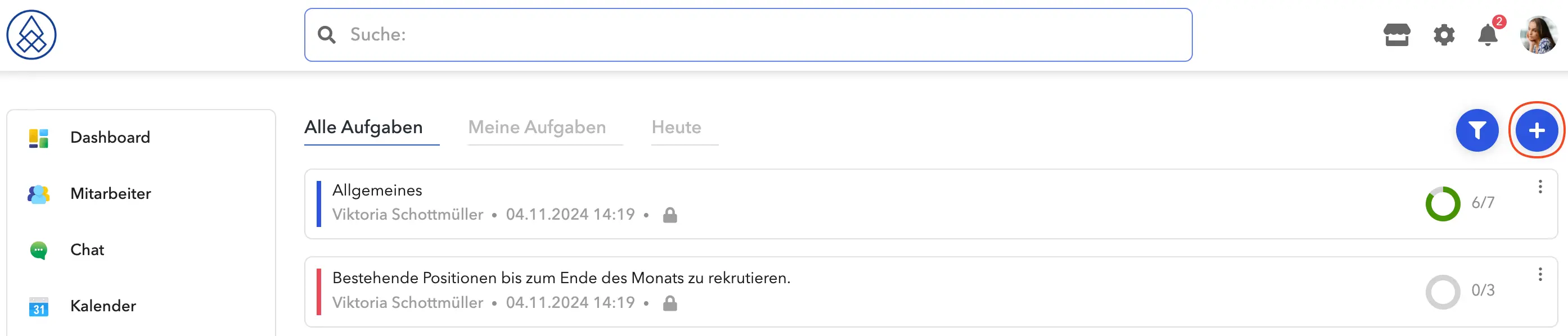
In the All Tasks tab :
- Click the plus button .
- Choose who should have access to this list (or leave it public for all users).
- Choose the color of the task list and enter a name.
- Click Save .
Adding a new task or subtask
In the task list tab:
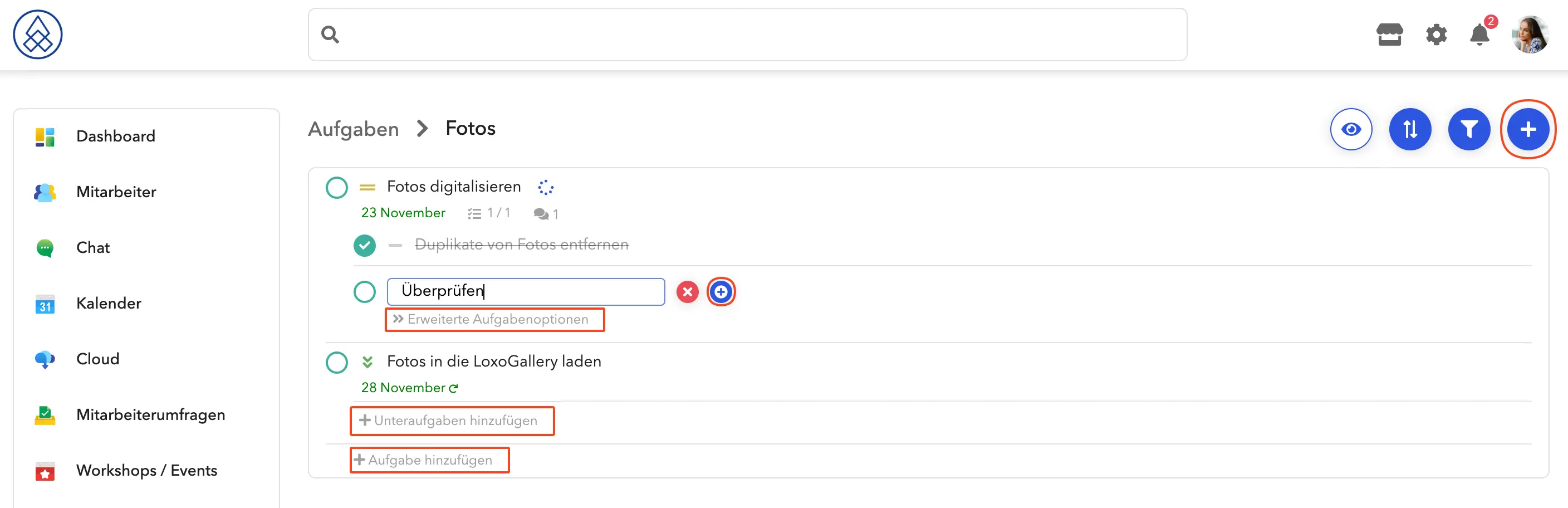
- Click the plus button or "+ Add task" .
- To open the advanced form where all task data can be specified, select Advanced Task Options .
- To add a subtask, click "+ Add subtasks" under the corresponding task.
You can also quickly add tasks and subtasks without using the advanced form by clicking the plus button located next to the task title input field.
You can also add a subtask in the task details.
A subtask cannot be added to another subtask.