
How can we help you?
Here in our Help Center you will find all general answers to questions about billing, admin panel, product and much more.
Instructions on how to participate in a survey
To participate in the survey, you must answer all mandatory questions marked with a red asterisk * .
There are four types of questions you may encounter:
- Single choice: Select an answer option from the given options.
- Multiple choice: Select several answer options from the given options.
- Short Answer: Enter a short, text-based answer in the field provided.
- Long answer: Enter a longer, detailed answer in the text field provided.
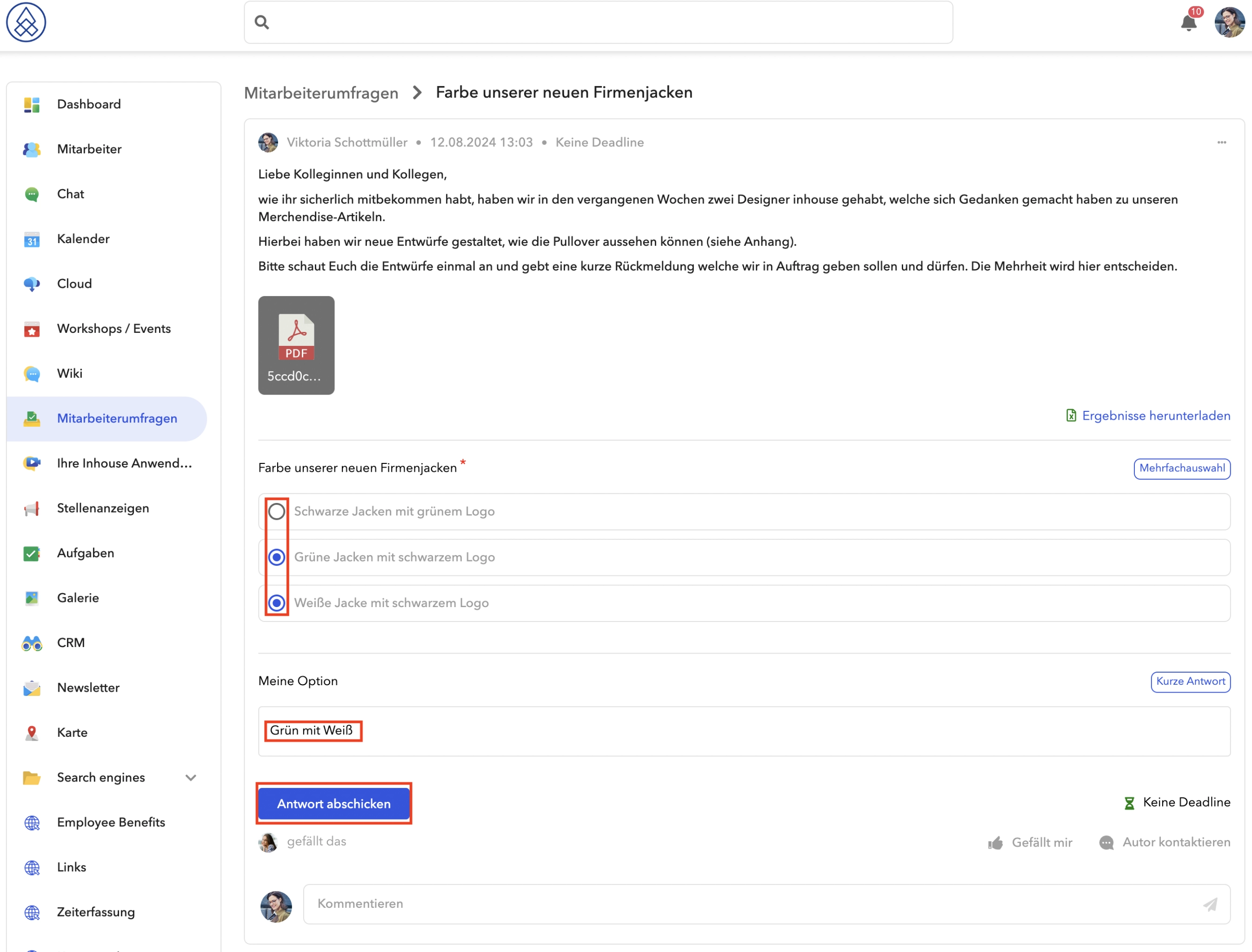
After you have provided all the required answers, click the Submit Answers button to submit your answers.
Editing replies already sent
If the survey author has allowed editing of answers, you can change the answers you have already submitted.
Click the "Click here to change your voice" button to start editing mode.
Edit the necessary answers in the appropriate fields.
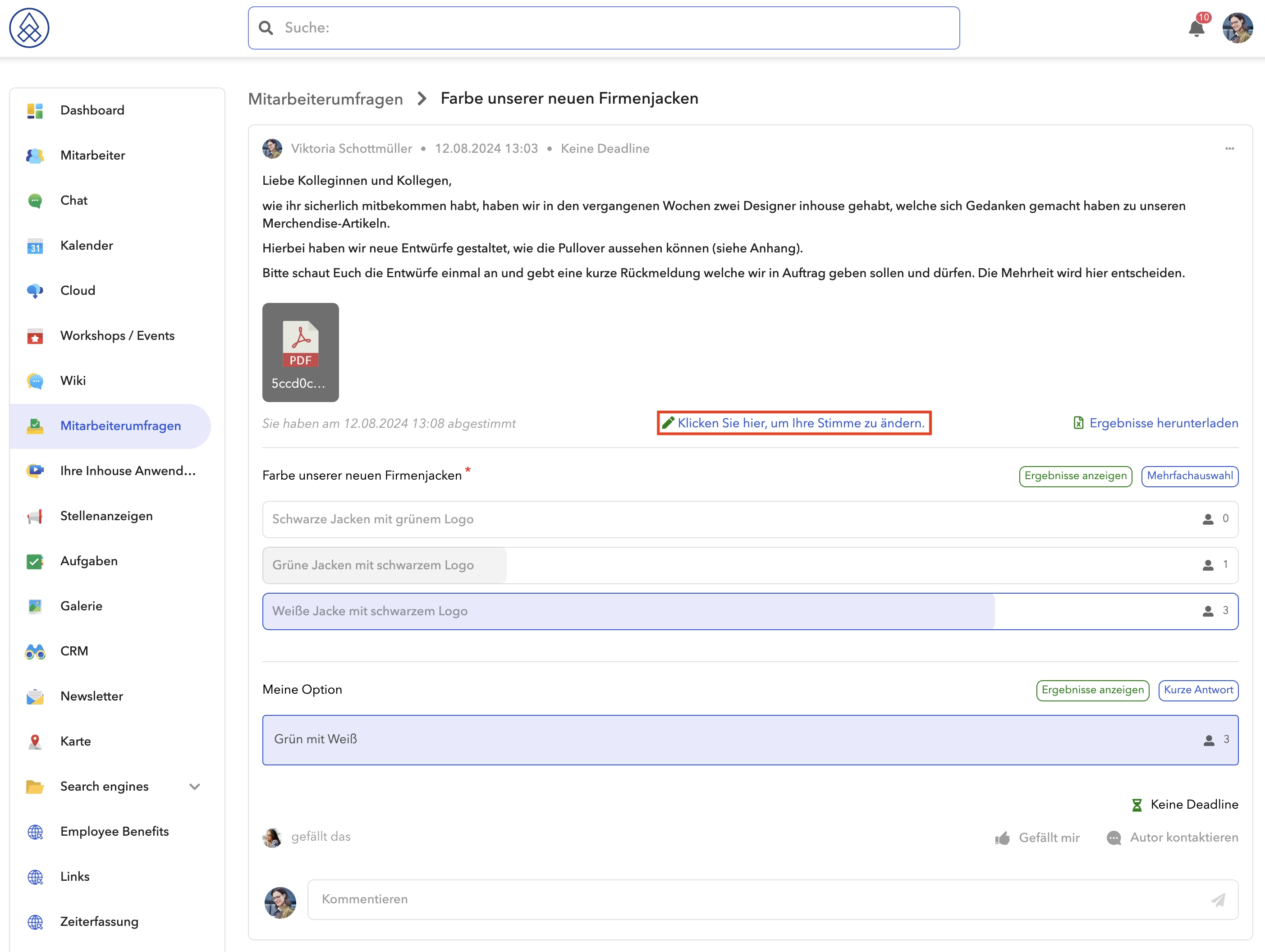
Once you have made the desired changes, click Submit Replies to submit your updated replies.
Instructions for creating a new survey
In the Surveys module , click the + symbol to create a new survey.

To successfully save the survey, all required fields must be filled in. The "Title" field is mandatory.
Additionally, you must add at least one mandatory question and specify at least two answer options for that question if it is a "Single Choice" or "Multiple Choice" type.
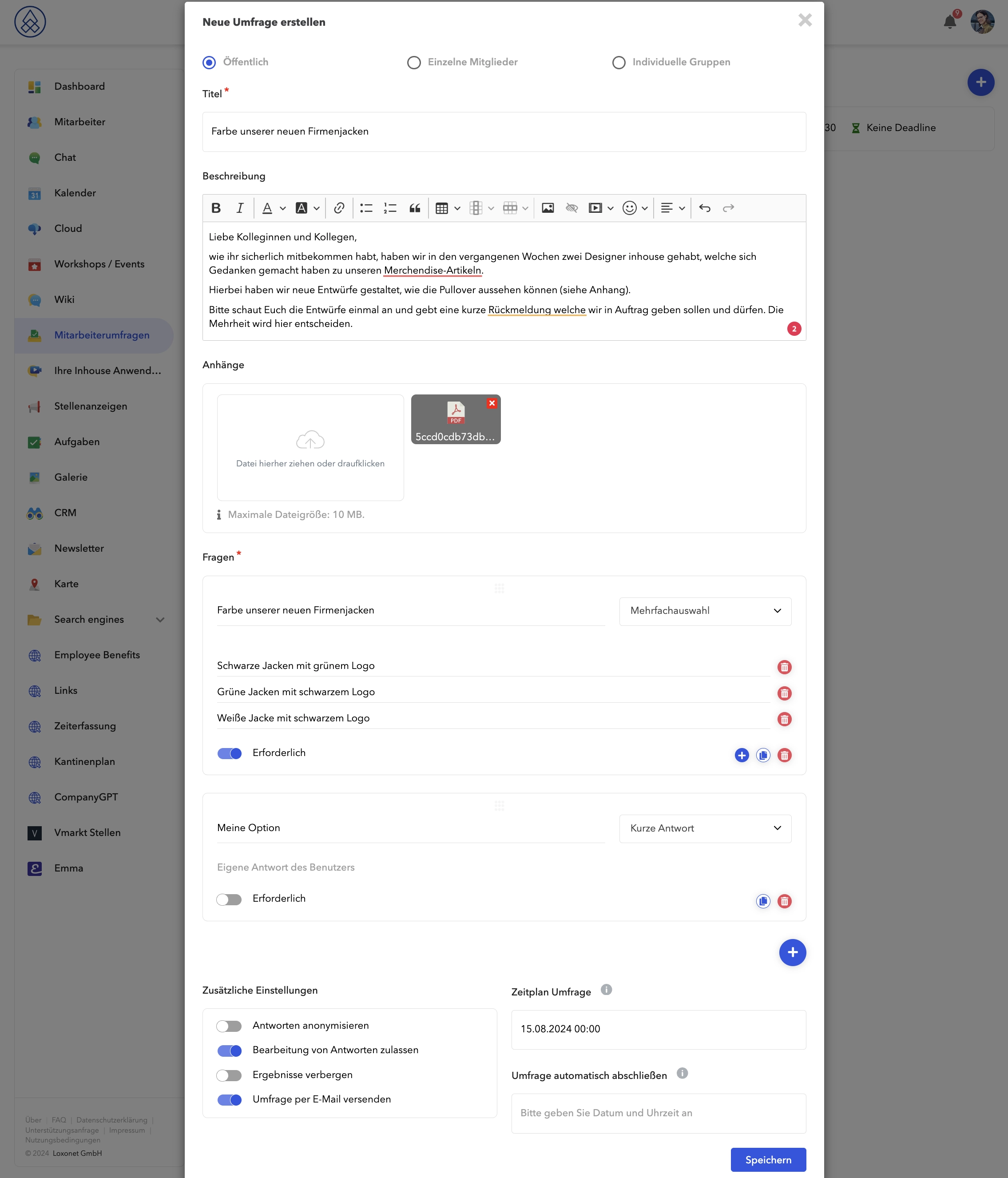
Click "Save" .
All other fields and options are optional and can be filled in or activated as required.
Overview of available fields and options:
- Description: Enter a description for your survey.
- Attachments: You can attach files and documents to the survey.
- Anonymize answers: Anonymize participants’ answers.
- Allow editing of answers: Allow participants to edit their answers.
- Hide results: Hide the survey results completely.
- Send survey via email: Notify participants about your survey via email.
- Schedule Survey: Schedule the date and time when the survey will be published and start. You can edit the survey until it is published. If no start date is specified, the survey will be published immediately.
- Auto-complete survey: Set an end date for the survey. If this field is left blank, the survey will be created without an end date.
Editing the survey
Before publication
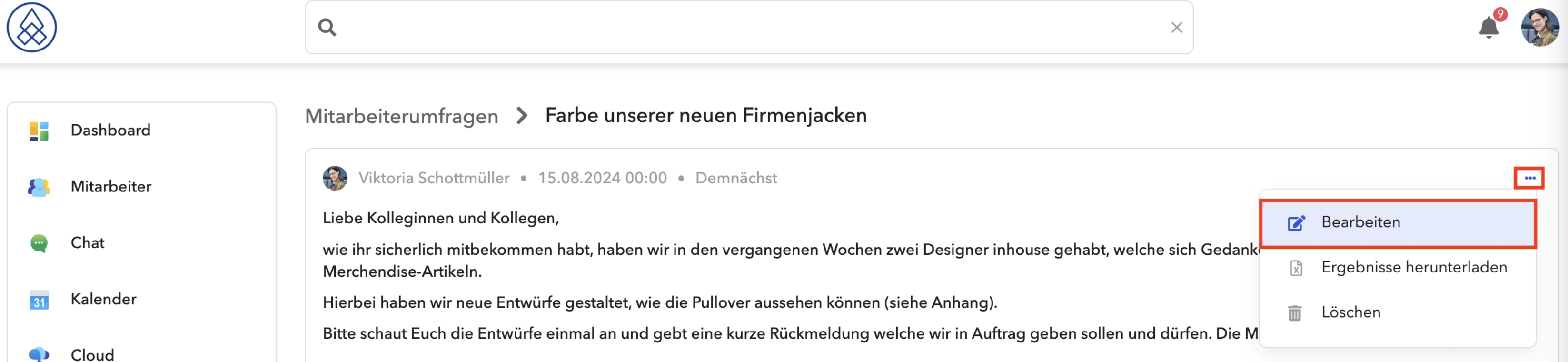
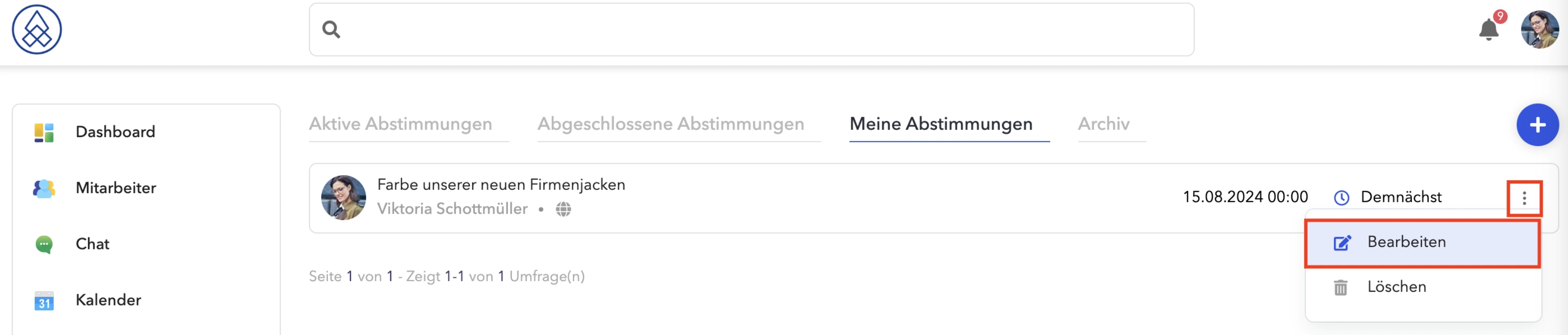
To edit the survey, click on the three dots and select "Edit".
After publication
Unfortunately, we cannot offer you the option to edit the existing vote.
Once a poll has been created and published, it is immediately sent to and available to all participants. Therefore, we have refrained from further editing to avoid manipulation.
You can delete a poll and create a new one with the correct parameters.